Below is a simple step by step illustration for creating a Simple SSRS report using Buisness Intelligence Development Studio 2008
- Create a new SSRS project on BIDS (you can find it under Business Intelligence tab under installed templates)
- You will get something like this in a new project, I have added a couple of Shared data sources and sample report (you won't get them obviously ;)

- Now right click on "Shared Data Source" folder icon and select add new data source
- This will prompt you with a dialog box to enter server, userid, password, etc. Get these things filled and you will get a new shared data source ready to be used. Something similar to SampleDBDataSource.rds as in above image
- You can skip this step if you dont wanna create a new shared data source. you can later embed this in report directly.
- Next click on "Reports" folder and add new report, this will launch Report Wizard. At first step you need to select an existing datasource or create a new one.

- Next step you need to enter your query. For my sample it’s something like below:

- Enter your desired query or stored procedure name (using query builder) and follow the wizard to reach “Design The Table” screen, as below
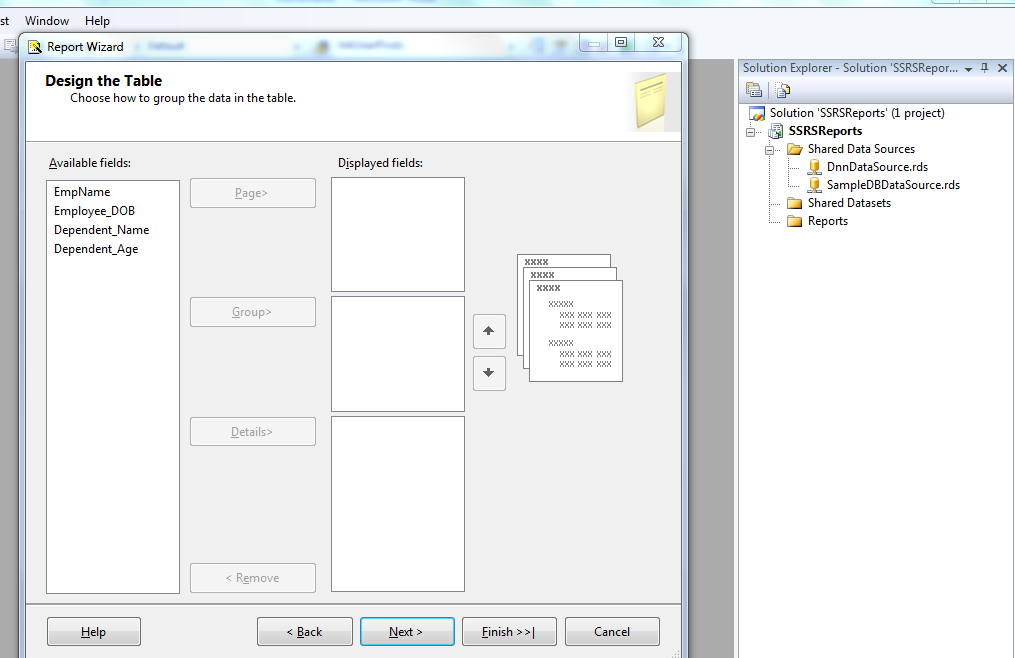
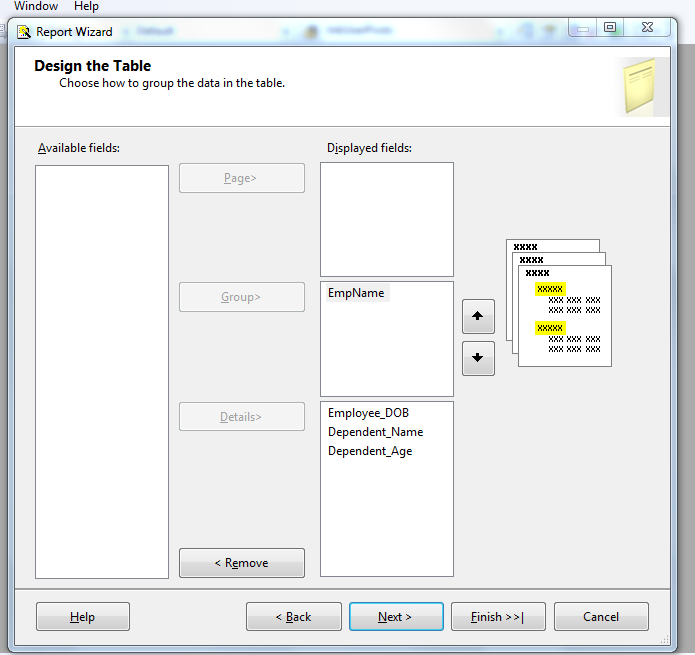
- At this step you have to divide your available fields in Group and Details section (just drag and drop), for my sample report I did like below:
- Now follow the wizard and you will have a report ready. In my case it was something like below:

- Press preview tab to preview how your report looks like.

- Now if you can make any design changes needed. Lets say we want to add string "Employee Name: " before Employee Name displyed(as in preview above)
- For this we need to add expression in place of Employee Name.
- Right Click textbox you want expression to be added(Emp Name textbox in this case)
- Select "Expression" from the context menu, you will get a screen as below. Enter desired expression and press OK(See below).

- This will give you below result.

Hey we are done with this post. Enjoy!! :)
Edit 15th Jan, 2013
I wrote this post to answer one of the question on codeproject and that question wants to show employee date once per group, so here are the steps to do so:

Edit 15th Jan, 2013
I wrote this post to answer one of the question on codeproject and that question wants to show employee date once per group, so here are the steps to do so:
- Add a new row below employee name row, as shown in below image.
- Add expression for Employee date, you may just select DOB field as shown below or can add some expression as shown a couple of images above. I used below expression in my sample
- ="DOB: " + Fields!Employee_DOB.Value
- and there you are!


I hope you guys won't mind some of my employee being minor DOB(1/8/2013) ;)
Thanks,
Ravi


